
How to Batch Fill PDF Forms from a Profile (Without Mail-Merge Pain)
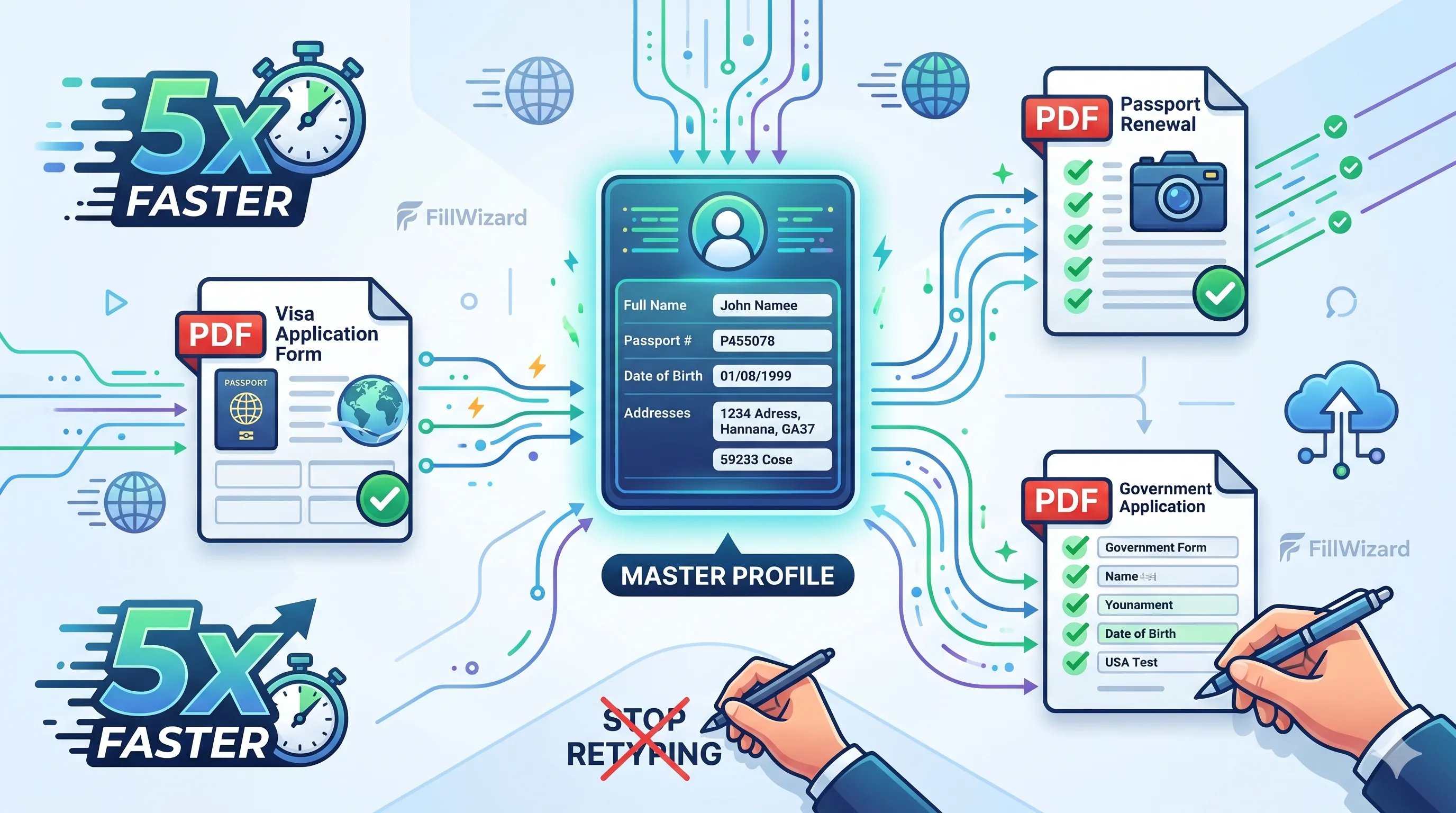
People search for three phrases that mean the same job in slightly different dialects: batch fill PDF forms, prefill PDF forms, and mail merge fillable PDF. Underneath all three is the same complaint: I already have this information somewhere. Stop making me type it again.
Sometimes "somewhere" is a notes file that started as a helpful list and became a lifestyle. Sometimes it is Excel. Sometimes it is last year's filled PDF, which you open just to copy the address block like a medieval scribe.
There is a cleaner pattern. Save the details once in a profile. Then fill every PDF that needs them.
Two jobs people mix up
| Job | Plain English | Example |
|---|---|---|
| N:1: one person, many forms | Same identity across a packet of different PDFs | New-hire W-4 + I-9 + direct deposit; visa I-130 + I-485 + I-765; ACORD 125 + 126 + 140 |
| 1:N: one form, many people | Same template, different person each time | Camp medical form for three kids; onboarding packet for every hire; client intake × 40 |
Batch fill covers both. Prefill is what each form looks like when you open it. Mail merge is how Excel people describe 1:N when they still live in spreadsheets.
If you only remember one line: enter once, generate the completed PDFs. Everything else is tooling.
Why mail merge for fillable PDFs gets ugly
Mail merge shines for letters and labels. Fillable PDFs fight back.
- Field names inside the PDF rarely match your column headers (
full_namevsApplicantNamevsText1). - One renamed field breaks the whole merge for 100 rows.
- AcroForm checkboxes and radio groups do not behave like Word merge fields.
- Scanned "fillable" PDFs are often flat images wearing a costume.
So people search "mail merge fillable pdf," try it once, then quietly go back to copy-paste. The intent was right. The tool was wrong for forms.
Prefill from a profile instead
A profile is a structured record: name, address, IDs, employer, emergency contact, whatever your packet repeats. You fill the profile once. FillWizard maps those fields onto each PDF.
For one person / many forms (packet mode):
- Create the person's profile.
- Upload the whole packet (or add forms one by one).
- Prefill every form from that profile.
- Review dates, amounts, and anything case-specific.
- Export the filled set.
For one form / many people (batch mode):
- Keep one template PDF.
- Create or select a profile per person.
- Batch fill a copy of the template for each profile.
- Review only the person-specific surprises.
- Ship the stack.
That is batch fill PDF forms without treating Excel as your CRM and without treating Adobe's autocomplete as a personality. Browser and Acrobat autofill guess from history. Profiles know who you meant.
When Excel still wins
If you truly have 100 clients in a sheet and you need 100 filled copies tonight, spreadsheet-driven fill is fine. Map columns to fields, run the batch, archive the outputs. Power users call this "auto fill PDF from Excel" or "batch-fill PDF forms from Excel rows."
Use Excel when:
- The list is the source of truth (a roster, a CRM export)
- You will not reopen those people as ongoing profiles
- The template is stable for this one run
Use profiles when:
- The same person returns next month with a new packet
- Multiple teammates must use identical spellings
- You care about not leaking last client's signature into this client's form (hello, Adobe Fill & Sign horror stories)
Most teams that "need mail merge" actually need profiles plus a batch button. The spreadsheet was a workaround for missing memory.
A 20-minute setup that pays off all year
- Pick the packet you hate most. HR onboarding, school medical, insurance ACORD trio, whatever makes you sigh.
- List the fields that repeat on every form. Name, DOB, address, phone, employee ID, policy number.
- Enter them once in a FillWizard profile. Resist the urge to "just finish this one form first." That is how the notes file was born.
- Run a prefill on the full packet. Time it. Compare to last month's copy-paste session.
- Save the mapping. Next hire, next sibling, next claim: swap the profile, keep the forms.
HR onboarding fill walks the new-hire version. Student form fill covers siblings and camp packets. Insurance folks hammering 125 / 126 / 140 can start from the insurance claim fill niche page.
Soft CTA: Starter from $49
If copy-pasting from a notes file got old fast, that is the product signal. Build the profile, batch fill the PDFs, keep the review for the fields that actually need a human.
Sign up and create a profile. When you need ongoing volume, paid plans start at $49/mo on Starter. For the broader "fill PDFs faster with reusable data" angle, see fill PDF forms faster with profiles. For the family-visa version of one form / many people, see DS-160 family application without retyping.
Batch fill is not a buzzword. It is the moment the second PDF fills itself because the first person already told the truth once.
Checklist
- Decide which job you have: one person across many forms, or one template across many people.
- Save a complete profile (or row of client data) before you open the first PDF.
- Upload the packet or template, map fields once, then batch fill from the profile.
- Review only the dynamic fields: dates, amounts, case IDs, signatures.
- Archive the filled PDFs and keep the profile as the source of truth for the next run.
Related articles
 Tool Comparisons
Adobe Fill & Sign Alternative When Autofill Suggests the Wrong Name
Adobe Fill & Sign remembers more than you want. Wrong name. Previous customer's signature. Private medical details on the next PDF. This guide covers when to clear the cache, when to keep Acrobat, and when a reusable profile is the safer Adobe Fill & Sign alternative.
8 min readRead more Visa Workflows
DS-160 Family Application: Why the Family Button Still Makes You Retype Everything
A DS-160 family application is still one form per person. The family button on CEAC does almost nothing for shared fields. Profiles fix the retyping. CEAC still gets the final submit.
9 min readRead more Multilingual Workflows
Arabic Forms with AI: Dual-Script Names, Hijri Dates, and RTL Layouts That Actually Work
Most tools translate the label and stop. Real Arabic form work needs dual-script names, Hijri dates, and a review layer that flows the right way.
9 min readRead more