
AcroForm vs Flat PDF: How to Make Any Form Fillable in 2026
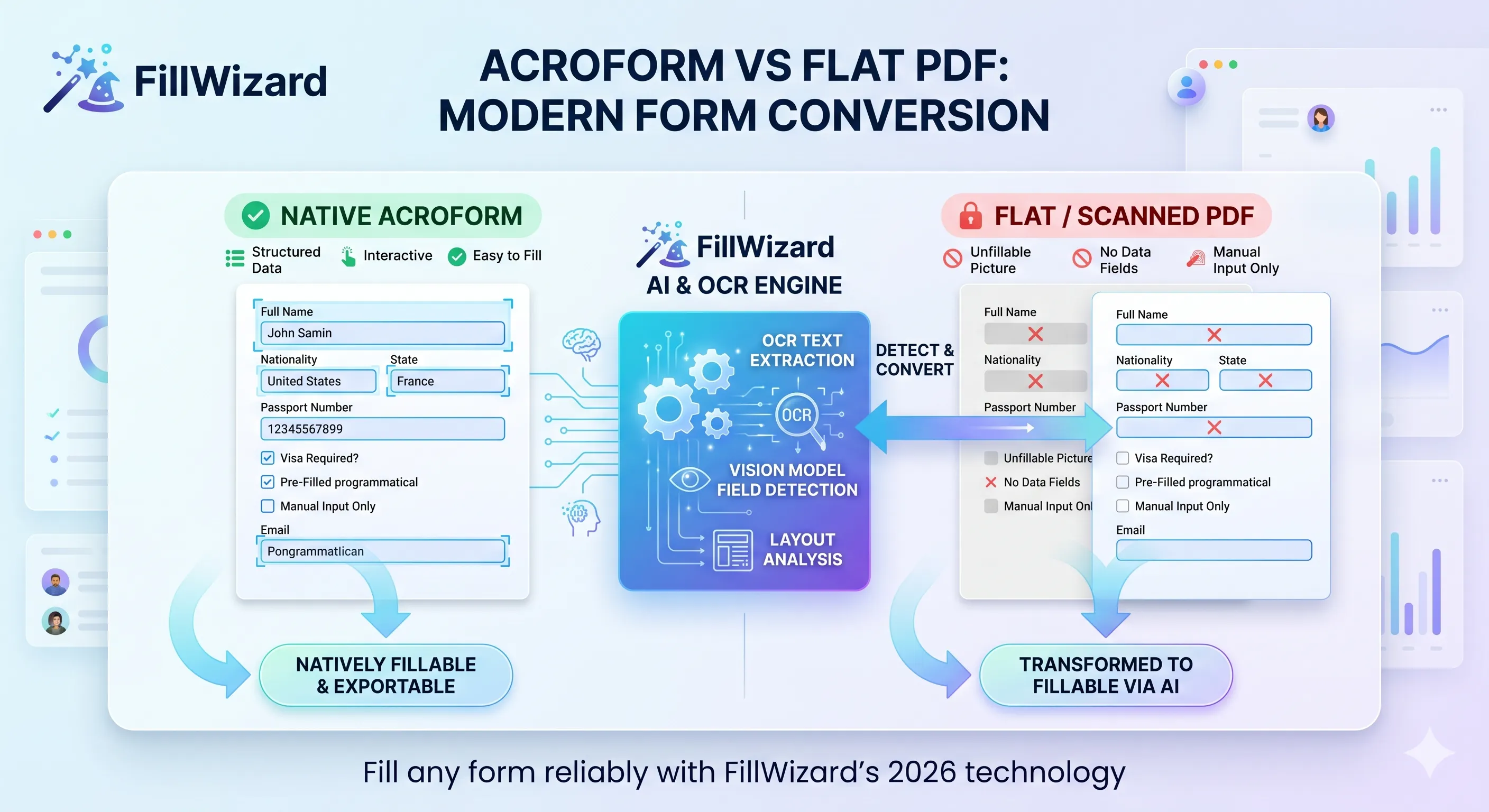
If you have ever opened two visually identical PDFs and found that one lets you type into the boxes while the other does not, you have already encountered the most fundamental split in the PDF ecosystem. Both look like forms. Only one is a form, in any meaningful technical sense. The other is a picture of a form.
Understanding this distinction is the foundation of every modern PDF autofill workflow. Tools that treat both as the same thing produce broken output. Tools that recognize the difference can fill either reliably. This article walks through what is actually happening under the hood, why some PDFs are stubbornly resistant to automation, and how 2026-era tooling collapses the gap.
It is the most technical article in our series, but you do not need to be an engineer to follow it. If you have ever written <input> in HTML, the concepts here are familiar.
The four kinds of PDF that look like forms
Most people think of "fillable PDF" as a single category. There are actually four:
1. AcroForm
Introduced in PDF 1.2 (1996), AcroForm is the dominant fillable-form technology. The PDF embeds field objects (/Annot entries with subtype /Widget, plus an /AcroForm dictionary at the document level). Each field has:
- A name (e.g.
passport_number) - A type (text, button/checkbox, radio, choice, signature)
- A position on the page (rectangle in PDF coordinate space)
- Optional default value, validation, and JavaScript actions
AcroForm fields are queryable. Open the PDF programmatically and you can list every field, its name, its type, and its current value. This is what "fillable PDF" means when the term is used precisely.
2. XFA (XML Forms Architecture)
Introduced in PDF 1.5 (2003), XFA wraps an XML form definition inside a PDF container. It was Adobe's attempt to bring richer form behavior (dynamic fields, complex validation, conditional sections) into PDFs. It works only in Adobe Reader on supported platforms.
XFA was deprecated in PDF 2.0 (2017). It remains common in older government and enterprise forms. If you have ever tried to open a tax form in Chrome's PDF viewer and seen "Please open in Adobe Reader," you have hit XFA.
For modern automation, XFA is best treated as a flat PDF: render it, OCR it, fill it. Trying to manipulate the XML directly is brittle and rarely worth the effort.
3. Hybrid (AcroForm + XFA)
Some PDFs include both an AcroForm representation and an XFA representation of the same form. This is for backward compatibility: Adobe Reader uses XFA, everything else falls back to AcroForm. Hybrids are increasingly rare but you will encounter them in financial and government forms produced before 2018.
For automation purposes: read the AcroForm side, ignore the XFA side, fill the AcroForm fields, flatten on export.
4. Flat / scanned
A flat PDF has no fillable structure at all. It is a sequence of rendered pages (text, images, vector shapes) with no concept of fields. The "boxes" the user sees are visual elements, not data.
Two ways flat PDFs are produced:
- Original flat: a graphic designer drew the form in InDesign, exported as PDF, and never added AcroForm fields. The boxes are rectangles. The labels are text.
- Scanned: a paper form was photocopied and saved as a PDF. The entire page is essentially one image. Even the text labels are pixels.
These are the PDFs that "don't let you type." They are also the PDFs that older automation tools cannot handle, because there is nothing to query. Only pixels.
Why this distinction matters operationally
For a team that handles thousands of forms across multiple workflows, the AcroForm/flat split has real consequences:
AcroForm forms are 10x easier to automate. You list fields, map them to profile data, write values, flatten. The whole process takes milliseconds.
Flat forms require detection. You have to find the fields visually (bounding box detection) before you can fill anything. This is where modern OCR and vision models earn their place.
Mixed packets break naive workflows. A real visa packet, RFP response, or claim packet routinely includes both AcroForm and flat PDFs. A workflow that only handles one type forces manual intervention on the other half.
Signature handling differs sharply. AcroForm signature fields can be programmatically populated. Flat PDF signature lines must be overlaid. Botched signatures invalidate forms.
How modern tools detect fields in flat PDFs
If AcroForm fields can be read directly, the interesting engineering happens on flat PDFs. The detection pipeline in 2026 looks like this:
Step 1: Render the page
The flat PDF is rendered to a high-resolution image (typically 300 DPI or higher). PDF.js, Poppler, or Ghostscript handle this reliably.
Step 2: OCR
Text is extracted with positions. Modern OCR engines (Tesseract 5, Google Document AI, Microsoft Azure Form Recognizer, or open-source vision models like Donut and LayoutLM) produce a list of (text, bounding box) pairs.
Step 3: Layout analysis
A layout model identifies structural regions: paragraphs, tables, headers, fillable regions. The model knows what a form "looks like": empty horizontal lines next to label text, checkboxes drawn as small empty squares, signature lines drawn as horizontal rules with "Signature" text underneath.
Step 4: Field association
Each fillable region is associated with the nearest label. "Passport number" text adjacent to a horizontal line means the line is a passport-number field. This step is where vision-language models shine: they can disambiguate "Date of issue" from "Date of expiry" even when the layout is cramped.
Step 5: Type classification
Each detected field is classified as text, checkbox, signature, or date. This drives downstream behavior: text fields accept profile values, checkboxes get marked, signatures are flagged for human action.
The output of this pipeline is a structure that looks essentially identical to what AcroForm would have produced natively. From here, the rest of the autofill workflow is the same.
For a high-level view of how this fits into a complete autofill engine, see our definitive AI PDF autofill guide.
Why old tools fail on flat PDFs
The previous generation of PDF tools (mid-2010s software) tried to solve the flat PDF problem with template matching. The user would:
- Upload a sample PDF.
- Manually click on each field location to draw a box.
- Label each box with a field name.
- Save the template.
The next time a PDF of the same layout arrived, the tool would project the saved template onto the new PDF and fill the boxes.
This works in theory. In practice it falls apart for three reasons:
- Template drift: even small changes (a new logo, a moved disclaimer) misalign the template.
- Per-form labor cost: a 40-form RFP packet means 40 templates, each requiring 5-10 minutes of setup.
- No semantic transfer: a template knows positions, not meaning. A form labeled "Last Name" in one carrier and "Surname" in another needs separate templates for each.
Modern field-detection pipelines bypass all three problems. They detect fields fresh every time, label them semantically, and require zero per-form setup.
Filling without breaking the original
Once fields are detected, filling needs to be surgical. The two failure modes to avoid:
Failure 1: Editing the underlying page content. If you flatten profile values into the existing page stream, you break things. Embedded fonts go missing. Existing signatures get invalidated. Metadata gets mangled. Some PDF readers refuse to render the result.
Failure 2: Saving an unflattened PDF as the final output. If you fill AcroForm fields and save without flattening, the receiving party can edit the values back. For high-stakes submissions (visa, government, legal), this is unacceptable.
The correct approach in both cases:
- For AcroForm PDFs: write values into existing field objects, then flatten the form on export. The result is a clean, immutable PDF that displays identically in every reader.
- For flat PDFs: render the page, overlay text values at the detected field positions on a separate transparent layer, flatten the combined output. Original signatures (which exist in the page content) survive intact. The new values become permanently part of the page.
A well-built autofill tool handles both cases automatically, choosing the right approach based on the input PDF type.
When OCR honestly will not save you
OCR has limits. The honest list of cases where automation falls short:
- Phone photos at an angle: keystone distortion confuses layout models. Get the user to scan flat or use a doc-scanner app.
- Faxes: the dynamic range is brutal. Re-print and re-scan if possible.
- Handwritten labels: rare in modern forms but occurs in legacy government forms. Manual labeling unavoidable.
- Forms with non-standard symbols: chess-style notation, mathematical equations, custom institutional codes. These need custom training, not off-the-shelf OCR.
- Multi-column dense layouts with no whitespace separation: layout models struggle. Some tweaking required.
The remaining 90% of real-world forms work cleanly. Knowing the failure modes prevents over-promising in proof-of-concept demos.
Multilingual considerations
For teams handling non-English forms (most of our readers; see our insurance claim, government tender, and visa packet workflows), language affects the OCR step:
- Latin scripts (English, Spanish, French, German, Portuguese): handled by every modern OCR engine.
- RTL scripts (Arabic, Hebrew): need OCR engines specifically trained on RTL layouts. Word ordering and field direction differ.
- East Asian scripts (Chinese, Japanese, Korean): need OCR engines with appropriate training data and a higher render DPI.
- Mixed-script forms: very common in visa work (English instructions + Arabic name field). Engines that handle both in a single pass save a step.
Field labels in the source language need semantic mapping to your profile fields. A field labeled Nationalité should map to Nationality in the profile. Modern semantic mapping handles this transparently; older tools required a translation dictionary.
The export step nobody talks about
A correctly filled PDF that renders wrong in the receiving party's PDF reader is functionally a failed submission. After filling and flattening, validate in:
- Adobe Acrobat (the canonical reference renderer)
- macOS Preview (different rendering engine, surfaces font issues)
- Chrome PDF viewer (the lowest common denominator for embassies and agencies)
- A printer driver (some signatures only show up correctly in print)
If the output renders cleanly in all four, you have a valid submission-quality PDF. If it does not, fix the renderer issue before submitting. Never assume the receiving party will use the same reader you did.
Practical decision tree
When a new PDF arrives, the decision tree is:
- Is it AcroForm? → Read fields directly. Fill. Flatten. Done.
- Is it XFA? → Render to image. Treat as flat PDF.
- Is it hybrid? → Read AcroForm side. Fill. Flatten. Done.
- Is it flat or scanned? → OCR + layout detection. Map detected fields. Overlay values. Flatten.
A modern autofill tool runs this decision tree automatically. You upload, it figures out what kind of PDF it is, and it routes to the correct pipeline. From the user's perspective, it is one workflow.
Related reading
- The Definitive AI PDF Autofill Guide for 2026: how the pieces above fit into an end-to-end workflow.
- Insurance Claim Form Workflow: the same technical foundations applied to a specific vertical.
- Government Form Fill: Tenders and Permits: same foundations, applied to public-sector procurement.
- FillWizard vs Adobe Acrobat vs DocuSign: direct comparison of how three popular tools handle the AcroForm/flat split.
What to do this week
If your team handles a mix of AcroForm and flat PDFs and only one of them gets automated, you are leaving 50% of your time savings on the table. Pick three flat PDFs from your real workload, run them through a modern autofill tool with vision-based field detection, and measure the output. The gap between "handles flat PDFs poorly" and "handles flat PDFs well" is exactly the gap between yesterday's tooling and today's.
Checklist
- Identify whether each incoming PDF is AcroForm, XFA, hybrid, or flat/scanned.
- For AcroForms: read field names, types, and structure directly — no OCR needed.
- For flat PDFs: run OCR with a layout model that can detect field bounding boxes.
- Use semantic mapping to project profile values onto detected fields.
- Preserve original signatures by overlaying values rather than re-creating the document.
- Export to a flattened PDF that opens correctly in any reader.
- Verify the output in Acrobat, Preview, and a printer driver before sending.
Related articles
 Tool Comparisons
Adobe Fill & Sign Alternative When Autofill Suggests the Wrong Name
Adobe Fill & Sign remembers more than you want. Wrong name. Previous customer's signature. Private medical details on the next PDF. This guide covers when to clear the cache, when to keep Acrobat, and when a reusable profile is the safer Adobe Fill & Sign alternative.
8 min readRead more Productivity
How to Batch Fill PDF Forms from a Profile (Without Mail-Merge Pain)
Batch fill and prefill should mean enter once, fill many PDFs. Mail merge for fillable forms is the old workaround. A profile is the cleaner version of the same idea.
9 min readRead more Visa Workflows
DS-160 Family Application: Why the Family Button Still Makes You Retype Everything
A DS-160 family application is still one form per person. The family button on CEAC does almost nothing for shared fields. Profiles fix the retyping. CEAC still gets the final submit.
9 min readRead more