
Adobe Acrobat Free Alternative? Only If You Fill the Same Forms Over and Over

Search "adobe acrobat free alternative" and you'll get a list of 30 PDF readers that all promise the same thing: every Acrobat feature, for free, with no downsides. Click through and you'll find watermarked exports, hidden paywalls, and a feature list that quietly drops OCR, redaction, and signatures the moment you read the fine print.
That's not what this article is. This is the honest version, written by people who use Adobe Acrobat every day for things FillWizard genuinely can't do, and use FillWizard every day for things Acrobat handles badly.
Adobe Acrobat is a 30-year-old product with a deep bench. It edits PDFs, OCRs scans, redacts text, tags documents for accessibility, assembles pages, runs certified e-signature workflows, and probably mows your lawn if you click the right menu. We are not going to pretend FillWizard replaces all of that. It doesn't, and any vendor who says otherwise is hoping you don't read past their landing page.
What we will tell you: if 80% of your Acrobat use is "open form, type the same data, save, repeat," there's a faster tool for that specific job. Whether the switch makes sense depends entirely on which 80% your week looks like.
Who should NOT switch (read this first)
Save yourself a procurement cycle. If your daily Acrobat workflow includes any of these, stay on Acrobat:
- Editing PDF content. Adjusting text inside a contract, swapping a logo, fixing a typo on page 12. FillWizard doesn't touch the document body.
- Page manipulation. Inserting, deleting, reordering, or splitting pages.
- OCR for archives. Turning a 200-page scan into searchable text. Acrobat's OCR is one of the best on the market.
- Redaction. Covering sensitive info with a real redaction layer that survives copy-paste. This is a legal-grade feature and we don't ship it.
- Certified e-signatures. Adobe Sign, hardware certificates, qualified electronic signatures under eIDAS. Different product category.
- Accessibility tagging. Tagging PDFs for screen readers under WCAG 2.1. Acrobat has tooling for this; FillWizard does not.
- Form authoring. Creating new AcroForm fields from a blank PDF. FillWizard fills forms; it doesn't build them.
If two or more of these are in your weekly rotation, keep your Acrobat license. Read on if you also have a repeat-fill problem the rest of the article describes — most teams pay for both and stop trying to force one to do the other's job.
Who SHOULD consider switching (this is the real question)
FillWizard is built for one user: someone who fills the same kind of PDF over and over from data that doesn't change much.
If your week looks like this, the math works in your favor:
- An HR coordinator onboarding 40 new hires a month, each one needing six PDFs filled with mostly the same employer data.
- An immigration paralegal preparing DS-160, DS-260, I-129F, and I-134 for client families, where 70% of each form repeats across the others.
- A claims adjuster filing ACORD 25 and ACORD 125 certificates from the same insured/policyholder data 30 times a week.
- A government-contracting bid writer answering the same vendor-info questions across every RFP packet.
- A school registrar filling the same student-record fields across federal, state, and district forms.
What ties these together: the data is structured, the forms are recurring, and the typing is the bottleneck. Acrobat will fill any one of these forms fine. It just makes you do it from scratch every time, because that's how it was designed.
What "Adobe Acrobat alternative" usually means (and what it should mean)
The reason "adobe acrobat alternative" is a high-volume search is that Acrobat Pro costs around $20–25 per seat per month, and most teams who pay for it use about 15% of the feature surface. When you're paying for redaction and accessibility tagging but only using fill and sign, you start Googling.
What the search results usually offer:
- Free PDF readers that view and lightly annotate, then upsell aggressively when you try to save.
- PDF editors that try to clone Acrobat one-to-one and end up being a cheaper, slower Acrobat with a worse UI.
- All-in-one suites that bundle fill, sign, edit, OCR, and convert into one product that does each badly.
What none of these get right is the distinction that matters: editing a PDF and filling a PDF are different jobs. They share a file format and almost nothing else. A tool optimized for "fill this form, then the next one, then the next one" looks nothing like a tool optimized for "edit this contract before sending it to legal."
FillWizard makes that bet explicit. We do one thing well and leave the other 50 features to Acrobat. If the one thing is your bottleneck, you save time. If it isn't, you don't.
Concrete feature comparison
Numbers, not adjectives. Where each tool stands today:
| Capability | Adobe Acrobat | FillWizard |
|---|---|---|
| Edit PDF text and images | Native, excellent | Not supported |
| OCR scanned PDFs into searchable text | Native, excellent | OCR is for field detection only |
| Redact content with proper layer | Native, legal-grade | Not supported |
| Reorder, split, merge pages | Native | Not supported |
| Tag PDFs for accessibility (WCAG) | Native | Not supported |
| Authoring new AcroForm fields | Native | Not supported |
| Fill an AcroForm PDF once | Yes, manual typing | Yes, autofill from profile |
| Identity profile that fills 40 forms automatically | No concept of this | Core feature |
| Scanned/flat PDF field detection and fill | Limited | AI-driven, native |
| Multilingual fill including Arabic and RTL | English-leaning | Native first-class support |
| Bulk fill across many forms in one batch | Awkward | Core feature |
| Audit log per fill | Limited | Per-field, exportable |
| Certified e-signatures (eIDAS, qualified certs) | Via Adobe Sign | Out of scope; pair with DocuSign/Sign |
| Pricing model | Per-seat, ~$20–25/user/month | Free tier + paid tiers (beta) |
Look at that table honestly. If the top six rows describe your daily work, FillWizard isn't the right tool. If rows 7 through 11 describe your daily work, Acrobat will keep costing you hours every week and you should at least pilot a switch.
Pricing context (the honest version)
Adobe Acrobat Pro lands around $20–25 per user per month for the standalone product, more if you bundle Creative Cloud, less if you're on an enterprise volume agreement. For a 20-person legal team that lives in Acrobat all day, that's a fair price. For a 20-person HR team that opens Acrobat to fill forms, save, and close, you're paying for 50 features to use three.
FillWizard pricing during the current beta runs on a tiered model: a free tier for occasional use, paid tiers for unlimited fills with team profiles, and a separate plan for high-volume agencies. Public pricing lands at the public launch.
The right question isn't "which is cheaper." It's "how many hours a week is your team typing the same data into forms, and at what fully loaded labor cost." Run that number. If it's small, stick with what you have. If it's 40+ hours a week across your team, the math gets very loud, very fast.
Migration workflow if you decide to pilot
Don't migrate. Layer.
The teams who switch successfully don't drop Acrobat overnight. They keep it for the editing, OCR, redaction, and signing work, and route the repeat-fill workload to FillWizard. After 90 days, they have data on which tool is the bottleneck for which workflow, and they can decide whether to keep both seats or downgrade one.
A working pilot looks like this:
- Week 1: pick the worst repeat-fill workflow. The one where your team complains. Onboarding packets, ACORD certificates, visa worksheets, RFP cover sheets. Whatever it is.
- Week 1: build one profile per identity. Employee, applicant, policyholder, vendor. Pull from existing data exports if you have them (the AcroForm vs flat PDF guide covers what "structured profile" actually means in practice).
- Weeks 2–3: run the same workflow in parallel. Three people on Acrobat, three on FillWizard. Track time-to-fill and error rate honestly.
- Week 4: compare and decide. If FillWizard saves more than 30% of time on the workflow, keep the pilot running. If it doesn't, the workflow isn't repetitive enough to justify the switch and you stay on Acrobat for it.
- Months 2–3: expand to the next-worst workflow. Repeat. The teams who get the biggest wins move 3–4 repeat-fill workflows over and leave the rest in Acrobat.
You'll know within 30 days whether the switch fits your team. The ones who try to flip everything in week one usually flip everything back in week three. Don't be them.
Where the two tools should sit in your stack
Most form-heavy teams end up with a stack that looks like this:
- Adobe Acrobat for editing source PDFs, OCRing archives, redacting client data, assembling final packets, and certified signing.
- FillWizard for filling the recurring forms inside those packets from saved profile data.
- DocuSign or Adobe Sign for the final signature step on the assembled packet.
Each tool does the part of the job it's actually built for. Nobody's faking it on the long tail. Procurement understands the bill because each line has a clear job.
The version of this that fails is the team trying to make one tool do all three jobs. Acrobat does fill, but slowly. DocuSign does fill, but worse. FillWizard does fill well, but doesn't pretend to edit or sign. The trio works because each one stays in its lane.
Related reading on the repeat-fill workflow
If you want concrete examples of what "repeat-fill from one profile" looks like in practice, two posts go deep on specific workloads:
- DS-160 Autofill Guide: how a single profile fills the entire US consular packet for one applicant in 15 minutes instead of 90.
- ACORD 25 PDF Fillable Guide: how a single insured profile fills certificate of liability forms for an entire week of new policies.
Both posts are the same idea applied to different verticals: build the profile once, fill the form n times, never retype anything.
Bottom line
The honest version: there is no free Adobe Acrobat alternative that does everything Acrobat does. Acrobat is a 30-year-old PDF operating system. What there is, is a faster tool for one specific Acrobat use case: filling the same forms repeatedly from saved profile data.
If that's the part of your week where the hours leak, start a free FillWizard profile and pilot it on one workflow. Keep Acrobat for the editing, OCR, redaction, and signing it's built for. Pay both bills and stop trying to make one tool do two jobs. Your future self, who didn't spend Tuesday afternoon retyping someone's address into the same form for the fourth time, will mail you a thank-you card.
Checklist
- Audit your last 30 days of Acrobat use. If 80% of your time is repeat form filling, FillWizard saves the most hours.
- Keep Acrobat for editing, page assembly, OCR, redaction, and certified e-signatures. None of these are FillWizard's job.
- Build one master profile per identity (employee, applicant, policyholder) so every form pulls from the same fields.
- Test on three real forms in parallel for a week before retiring any Acrobat workflow.
- Plan for both tools to coexist. Most form-heavy teams pay for FillWizard and Acrobat, not one or the other.
Related articles
 Tool Comparisons
Adobe Fill & Sign Alternative When Autofill Suggests the Wrong Name
Adobe Fill & Sign remembers more than you want. Wrong name. Previous customer's signature. Private medical details on the next PDF. This guide covers when to clear the cache, when to keep Acrobat, and when a reusable profile is the safer Adobe Fill & Sign alternative.
8 min readRead more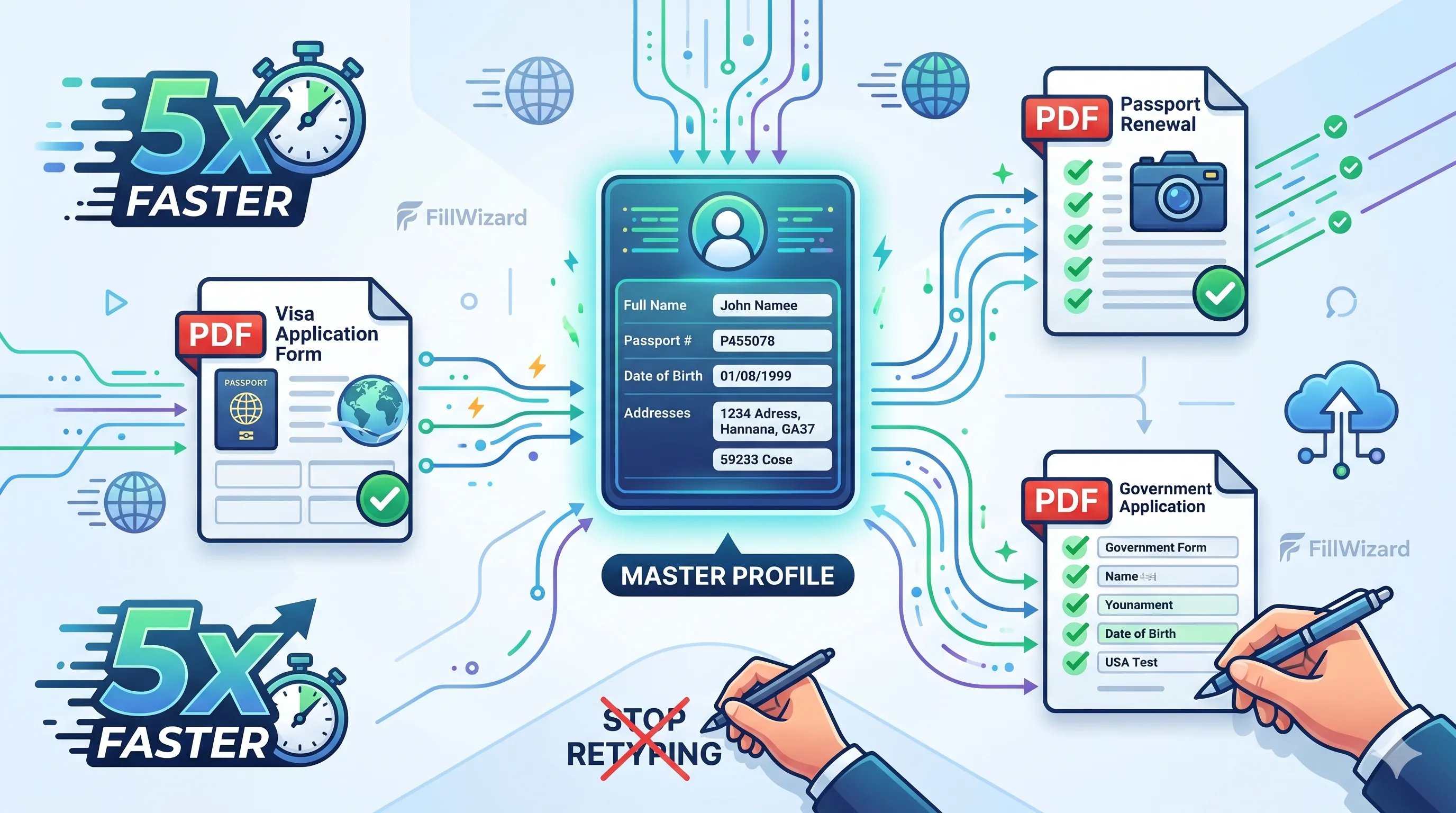 Productivity
How to Batch Fill PDF Forms from a Profile (Without Mail-Merge Pain)
Batch fill and prefill should mean enter once, fill many PDFs. Mail merge for fillable forms is the old workaround. A profile is the cleaner version of the same idea.
9 min readRead more Visa Workflows
DS-160 Family Application: Why the Family Button Still Makes You Retype Everything
A DS-160 family application is still one form per person. The family button on CEAC does almost nothing for shared fields. Profiles fix the retyping. CEAC still gets the final submit.
9 min readRead more