
How to Convert Any Scanned PDF to a Fillable Form
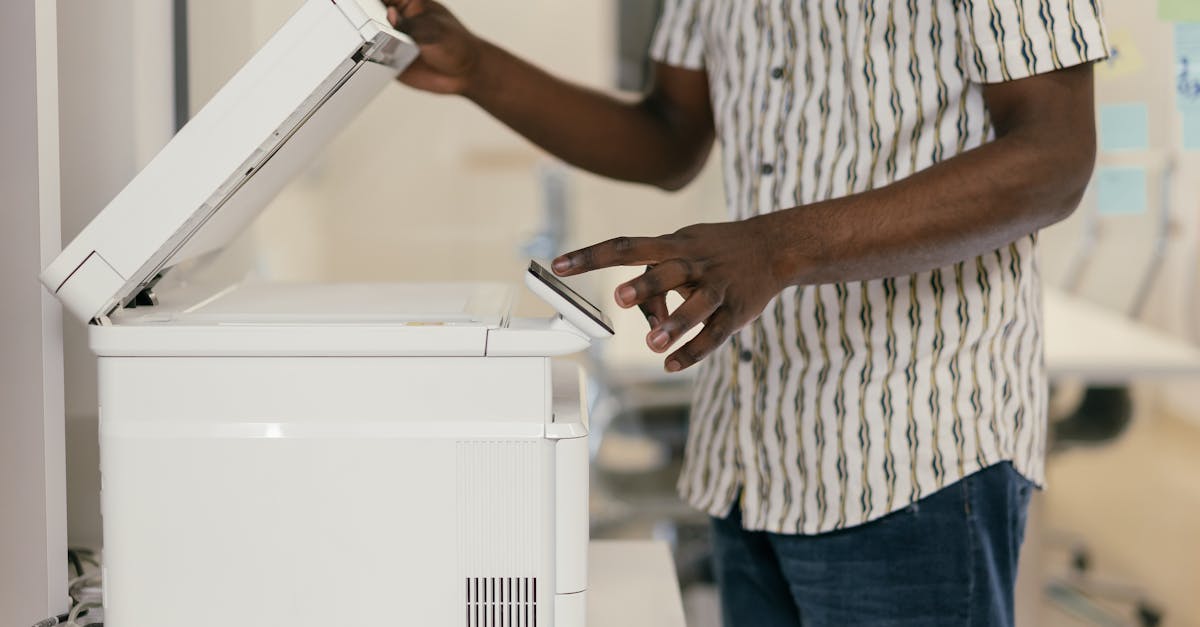
A scanned PDF is a picture of a form. It looks like the real thing, but no field accepts input because there is no field structure embedded in the file. The page is essentially one image. Click the boxes all day and nothing happens.
Turning that image into something fillable is a five-step process. The technology behind it has changed a lot in the past two years, and most older tooling still gets it wrong. Here is the working version, plus the multilingual gotchas that bite teams who skip them.
What a "flat" scanned PDF actually is
When you scan a paper form, your scanner produces a PDF with one or more page-sized images inside it. There is no concept of a field. The text labels are pixels. The boxes are rectangles drawn on top of the image. Nothing is queryable.
This is different from an AcroForm PDF, where the file embeds field objects with names, types, and positions. AcroForms are fillable by design. For background on the split between the two, see AcroForm vs flat PDF.
If you want a scanned PDF to behave like an AcroForm, you have to detect the fields yourself.
Why OCR alone is not enough
OCR is the technology that converts page images into machine-readable text. Run a flat PDF through Tesseract or any modern OCR engine and you get a list of words with bounding boxes.
That is useful, but it does not solve the problem. OCR tells you what the page says. It does not tell you which empty rectangle next to "Date of birth" is the field, or that the small square next to "I agree" is a checkbox, or that the horizontal rule at the bottom is a signature line.
For that, you need a layout-aware vision model. Modern stacks pair OCR with a model trained on form layouts. It classifies each region as a text input, checkbox, radio, or signature, and links it to the nearest label. The combination is what makes detection work.
The five-step process
Here is the practical workflow we use.
1. Get a clean 300 dpi scan
Scan flat. A flatbed scanner is best. A document-scanner app on your phone is fine if it corrects perspective so the page comes out rectangular. Phone photos taken at an angle fail because the layout model can't tell which rectangle is supposed to be a field versus skewed page geometry.
2. Run OCR plus layout detection
The output is a structured representation of the page: each text run with a bounding box, each detected field with a type and a label association. This is the step that replaces what used to take 10 minutes of manual field-by-field clicking in older tools.
3. Review the low-confidence fields
Detection is not magic. The model flags fields it is unsure about — fields with cramped labels, fields next to logos, fields in dense multi-column sections. Review those before you fill. Five seconds of human review here saves ten minutes of debugging a botched packet later.
4. Overlay values on a separate layer
Once fields are mapped to your profile values, the filler draws the text on a transparent overlay above the original page image. The page itself is untouched. Existing ink, including signatures already on the scan, stays exactly where it was.
5. Flatten and export
Flattening merges the overlay with the page into a single static image. The result opens identically in Adobe Acrobat, macOS Preview, Chrome's PDF viewer, and any printer driver. Nobody on the receiving end can edit the values back, which is the only acceptable final state for high-stakes submissions.
The multilingual angle
If your forms are in one language only and that language is English, every modern OCR engine handles it. If they are not, the OCR step is where things get interesting.
Arabic forms read right to left. The OCR engine needs to know that so word ordering and field direction come out correct. French, Spanish, and German use Latin script but have accents and ligatures that some older engines drop silently. Mixed-script forms, common in visa work, place English instructions next to Arabic name fields and need an engine that handles both in a single pass.
Field labels also need semantic mapping. A field labeled Nationalité in French or Staatsangehörigkeit in German should map to the same profile field as Nationality. Modern semantic mapping handles this for you. Older tools required a translation dictionary per locale.
Where this fits in your stack
If your team handles a steady volume of scanned forms (government tenders, visa packets, insurance claims, HR onboarding), building this pipeline yourself is a months-long project. FillWizard ships it as one workflow: drop the PDF, get a fillable version back, fill it, export it flat. For more on how the pieces fit together, see the definitive AI PDF autofill guide.
What to try this week
Pick three scanned forms from your real workload. Run them through a tool with OCR plus layout detection. Time it against the manual workflow you use today. The gap between "convert one scanned PDF in an hour" and "convert one in under a minute" is exactly the gap between yesterday's tooling and current vision models.
Checklist
- Scan flat at 300 dpi or higher — no phone photos at an angle.
- Run OCR plus a layout model that detects text boxes, checkboxes, and signature lines.
- Review the fields flagged with low confidence before you fill anything.
- Overlay values on a separate layer so the original page stays untouched.
- Flatten and export so the file opens the same way in every reader.
Related articles
 Tool Comparisons
Adobe Fill & Sign Alternative When Autofill Suggests the Wrong Name
Adobe Fill & Sign remembers more than you want. Wrong name. Previous customer's signature. Private medical details on the next PDF. This guide covers when to clear the cache, when to keep Acrobat, and when a reusable profile is the safer Adobe Fill & Sign alternative.
8 min readRead more Productivity
How to Batch Fill PDF Forms from a Profile (Without Mail-Merge Pain)
Batch fill and prefill should mean enter once, fill many PDFs. Mail merge for fillable forms is the old workaround. A profile is the cleaner version of the same idea.
9 min readRead more Visa Workflows
DS-160 Family Application: Why the Family Button Still Makes You Retype Everything
A DS-160 family application is still one form per person. The family button on CEAC does almost nothing for shared fields. Profiles fix the retyping. CEAC still gets the final submit.
9 min readRead more